


Drawing Pad Lite - Artbook
4.62.56K Reviews
App Specs
- Version
- 2.6.1
- Updated On
- License
- Free
- Downloads
- 10,000,000+
- Developer
- Cards
- Categories
- Art & Design
- Platform
- Android
Screenshots

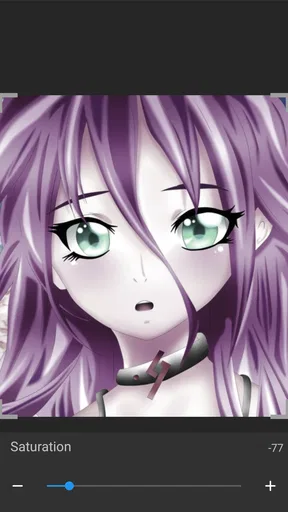
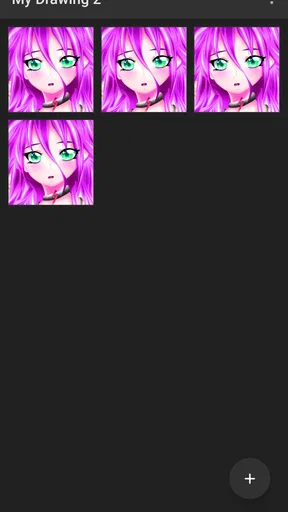
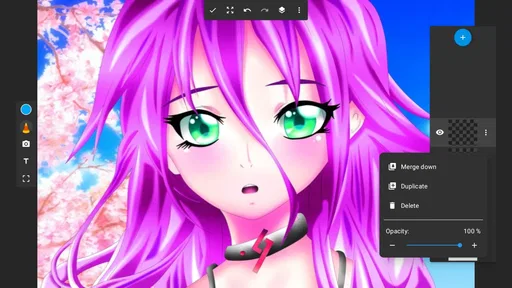
 Analysis by AppCompare
I reach for a sketching app when I want to get an idea onto a screen quickly, without setting up a full digital-art workflow. That is the kind of starting point Drawing Pad Lite - Artbook suggests: a drawing and painting app in the art-and-design space, made by Cards. Its appeal is easiest to judge by asking what you actually want to draw. If the answer is quick studies, casual doodles, or a first attempt at digital sketching, it has a sensible place in the mix. If you need a specialised production tool, the choice deserves more thought.
Choose by the kind of work you want to make
Before installing any drawing app, I would separate casual sketching from finished illustration. A quick thumbnail, a rough character pose, or a visual note for a project does not need the same setup as polished artwork that must be revised repeatedly. Drawing Pad Lite sits naturally at the accessible end of that range: its description points to sketching and painting, and the published version is 2.5.8.3. The free starting price makes it easy to try, while in-app purchases range from $0.99 to $99.99 per item, so I would check what is offered before treating every tool or option as part of the free experience.
It is also worth deciding whether you prefer drawing with a finger or a stylus and whether you need to work in short bursts. A phone-sized canvas can be convenient for a quick idea, but it is less comfortable for long, precise sessions than a larger display. I would begin with a small test drawing rather than committing a serious project immediately: try a few lines, change colors, undo a mark, and see whether the controls feel natural on your device. That small trial tells you more about the fit than a feature checklist does.
Getting Started with Drawing Pad Lite
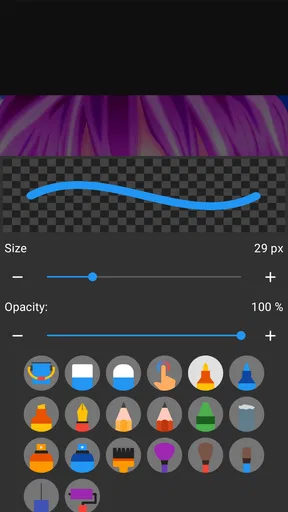
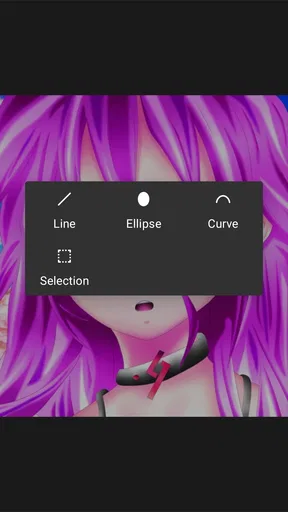
First things first, the download process is a breeze. Once you have Drawing Pad Lite - Artbook installed, you'll be greeted by a clean and intuitive interface. No complicated menus or overwhelming options here—just a straightforward canvas waiting for your creativity. The app offers a variety of tools right at your fingertips, including pencils, pens, and brushes. You can easily switch between them with a simple tap.
Where a lightweight sketching approach helps
In everyday use, I find a simple canvas most valuable when an idea is still rough. Imagine waiting for a train and noticing an interesting shape in a shop window: you can sketch its outline, block in a couple of colors, and keep the result as a reminder without carrying a notebook and art supplies. The same quick-draft approach works for planning a handmade card, mapping a room layout, or saving a visual idea before it slips away. These are jobs where low friction matters more than a deep set of production controls.
A useful habit is to separate exploration from cleanup. I would make a loose first pass with broad shapes, then switch to finer marks only after the composition feels right. If the app’s available tools suit that way of working, the change from rough idea to clearer sketch stays manageable. It also prevents a common beginner trap: polishing one tiny detail before deciding where the rest of the drawing belongs. On a small screen, blocking out the whole image first is especially helpful because it lets you judge balance before spending time on detail.
Features and Tools
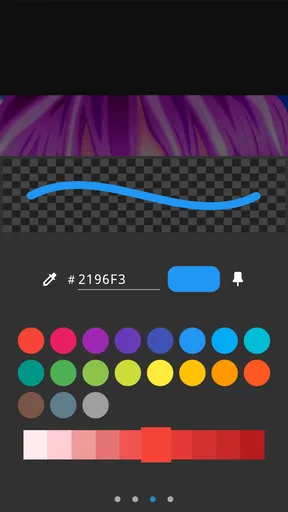
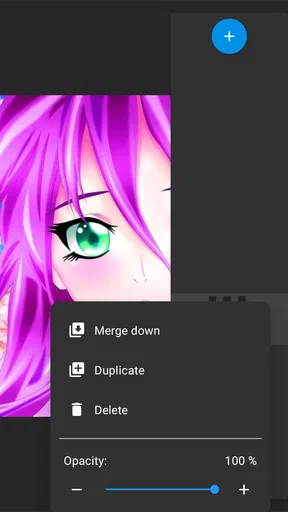
What I love about this app is the plethora of tools that cater to both simple sketches and more detailed artwork. You’ve got a spectrum of colors to choose from, and the blending options are pretty impressive. There’s also a handy eraser tool that’s perfect for those "oops" moments. The app even supports layers, which is a fantastic feature for anyone used to working with more advanced software. This means you can experiment without the fear of ruining your entire piece.
Worth Reading Before You Choose

Flipboard Shows What News Apps Must Do Beyond the Feed

Switching to Android Auto Means Rethinking Your Driving Routine

Google Calendar Makes a Crowded Week Easier to Manage

Ludo King Makes the Most of the Minutes Between Plans

Baby Panda World Brings Quick Play to Modern Phones, but Its Game Library Feels Busy

ESPN’s Live Game View Makes Following Close Games Easier
Layers are most useful when they solve a specific problem, not simply because they are available. For example, I would keep a loose construction sketch separate from cleaner lines, or put a color test on its own layer so I can reconsider it without redrawing the underlying forms. This kind of separation makes experimentation less risky and gives a beginner a practical way to understand how digital drawing differs from paper. A good rule is to name or organize layers by their purpose if the interface allows it; even a simple “rough” and “color” distinction can make later edits less confusing.
Blending can also be easy to overuse. I would reserve it for places where a soft transition helps describe a rounded object or a shaded area, rather than smoothing every mark. Keeping some crisp edges beside softer ones often makes a sketch feel more intentional. The same restraint applies to color: choosing a small group of colors at the beginning can make a study easier to read and quicker to finish than repeatedly browsing a broad palette mid-drawing.
How it compares with other drawing apps
Compared with a paper notebook, a digital canvas gives you room to test color and revise marks without starting over. Compared with more specialised illustration software, a straightforward sketching app is appealing when you want to open a canvas and begin rather than manage a complex workflow. That simplicity is a genuine advantage for casual users, but it can become a limit for artists whose work depends on fine control, detailed project management, or a particular professional pipeline. I would choose according to the task, not assume that one app has to cover every kind of art.
If your main goal is painting finished pieces, check that the available controls feel precise enough for your style before you invest time in a large project. If you mainly want visual notes, warm-up drawings, or a place to practise, a lighter tool may be more comfortable than an app built around a demanding studio workflow. And if you already rely on a familiar drawing program, switching only makes sense if this one makes a particular task easier; installing another app by itself will not improve the work.
User Experience and Design
The app’s design is sleek and user-friendly, making it easy for anyone to dive in and start creating. I found the navigation to be quite intuitive, with all the main tools accessible from the toolbar at the bottom of the screen. The responsiveness of the app is also noteworthy; there’s no lag when drawing, and the lines are smooth and precise.
There is still a practical adjustment period with any touchscreen canvas. Your hand can cover the area you are drawing, and a gesture that feels natural in one app may not match another app’s controls. I would spend a few minutes learning the basic movement and correction actions before working on anything important. That is not busywork: it reduces accidental marks and helps you decide whether the interface feels comfortable for a longer session. A stylus may improve the feel for some people, but I would not buy one solely for this app before trying the screen you already have.
Who should consider another option
I would steer away from this as a primary tool if you need a dependable, specialised workflow for complex commissioned work or detailed revisions. The features described here make it promising for sketching and experimenting, but the right choice for a serious project depends on whether its controls, output and working process match your requirements. Artists who need a highly tailored setup should compare a few apps hands-on, using the same small test drawing in each rather than relying on broad claims about which is “best.”
It may also be the wrong fit if you would rather draw on paper, dislike making art on a phone, or only want an app with no optional spending. It is free to install, but purchases are available, so I would review any purchase screen carefully and avoid buying extras until I know they address a real need. For a parent choosing an art app, its Everyone age rating is a useful starting point, though I would still look over the app together and discuss any purchase prompts before handing over a device.
Sharing Your Artwork
Once you’re done crafting your masterpiece, sharing it is as simple as pie. The app allows you to export your creations directly to social media or save them to your device. This feature is a great way to showcase your artwork to friends or save it for future inspiration.
For a more useful personal archive, I would save early studies with a short, descriptive name rather than relying on memory. A label such as “window-shape study” makes a quick sketch easier to find later and can show how an idea developed. Before sharing, take a moment to check the image at the size other people will see it; tiny details that look clear while zoomed in may disappear in a small preview. If the drawing is part of a project, keeping a saved copy on the device gives you a separate version to refer back to while you continue experimenting.
How much to expect from a free app
The basic decision is whether the free experience covers the way you want to sketch. Drawing Pad Lite has an average rating of 4.5 from around 73,000 ratings, with about 2,200 written reviews and over 10 million installs. Those figures suggest that many people have tried it, but they do not tell me whether its particular drawing controls will suit your hand or your style. I would use them as context, then judge it by making a real test sketch on my own device.
The app is free, with optional in-app purchases priced from $0.99 to $99.99 per item. That is a broad range, so I would not assume that every purchase is small or necessary. Start by using the available tools for a few ordinary tasks, then consider spending only if you can identify exactly what the purchase adds to your routine. If the free setup already handles your visual notes and practice drawings, there is no reason to buy anything just because an option appears.
Getting comfortable before committing
A short trial can answer the questions that matter most: can you make the kind of marks you want, can you correct a mistake without losing your place, and can you save or share the result in a form that works for you? I would test those points with a simple object, such as a mug or a plant, rather than opening with a complicated portrait. A familiar subject makes it easier to notice whether the tool is helping or getting in the way.
For people moving from paper, the biggest adjustment is not necessarily learning digital art; it is getting used to the screen as a surface. I would begin with short sessions and focus on broad shapes before trying detailed shading. For someone arriving from another digital drawing app, I would instead test whether the toolbar and layer workflow are comfortable enough to justify keeping a second app. Either way, a modest trial gives a fair answer without turning setup into a project of its own.
On compatibility, the app supports Android 6.0 and later, which gives many older devices a chance to run it. It was released on November 30, 2021, and the current version is 2.5.8.3. I would still check how it feels on the device I plan to use, especially if I intend to draw for more than a few minutes at a time; a supported operating system does not automatically make a small screen comfortable for detailed work.
Overall, Drawing Pad Lite - Artbook is a fantastic app for anyone looking to flex their creative muscles. Whether you're a casual doodler or a dedicated artist, the app provides a platform to explore and enhance your artistic skills. So, if you're in the mood to create without the clutter of traditional mediums, give this app a whirl. You might just find yourself spending hours lost in the world of digital art.
My recommendation
I would recommend it most readily to someone who wants an approachable place for sketches, color experiments, and visual notes, and who is willing to judge the controls by trying them rather than expecting a complete professional studio. Its rating, large install base, and free entry point make it an easy candidate to test, but they are not a substitute for checking the drawing experience yourself. If you need highly specialised editing or prefer the feel of paper, another kind of tool may suit you better.
My practical advice is to install it, make one rough sketch and one simple color study, then see whether you enjoy returning to the canvas. Keep using it if it makes those small creative moments easier; compare alternatives if you find yourself fighting the interface or outgrowing the workflow. That is the clearest way to decide whether this particular drawing app belongs in your everyday creative kit.
Pros
- User-friendly interface for beginners.
- Wide range of brushes and tools.
- Supports high-resolution exports.
- Layer functionality boosts creativity.
- Frequent updates with new features.
Cons
- Limited toolset in free version.
- Occasional lag on older devices.
- Ads can be intrusive at times.
- No offline tutorials available.
- Limited cloud storage options.
FAQs for Drawing Pad Lite - Artbook
What features does Drawing Pad Lite - Artbook offer for artists?
Drawing Pad Lite - Artbook provides a wide array of tools for artists, including various brushes, pencils, and colors to create detailed sketches and paintings. It also offers layers, undo/redo functions, and customization options for brush sizes and opacity. The app is designed to cater to both beginners and experienced artists seeking a digital platform.
Is Drawing Pad Lite - Artbook suitable for beginners?
Yes, Drawing Pad Lite - Artbook is user-friendly and suitable for beginners. The intuitive interface makes it easy to navigate through tools and features. It includes tutorials and tips to help new users get started with digital drawing, making it an excellent choice for those new to art apps.
Does Drawing Pad Lite - Artbook require an internet connection to function?
No, Drawing Pad Lite - Artbook does not require an internet connection for creating and saving artwork. However, some features like downloading additional content or sharing art on social platforms may require connectivity. The offline accessibility ensures users can draw anytime, anywhere without disruptions.
Are there any in-app purchases in Drawing Pad Lite - Artbook?
While Drawing Pad Lite - Artbook is free to download, it does offer in-app purchases to unlock additional features and tools. Users can opt to purchase premium brush sets, advanced editing tools, or remove ads. This allows artists to enhance their experience and expand their creative possibilities.
Can I share my artwork directly from Drawing Pad Lite - Artbook?
Yes, Drawing Pad Lite - Artbook provides easy options to share your artwork directly to social media platforms or via email. The app supports various file formats, ensuring your creations maintain their quality when shared. This feature makes it simple to showcase your art with friends, family, or a wider audience.


